Ultimate Guide to Windows Performance Troubleshooting
Is your PC suddenly crawling to a halt, freezing right in the middle of critical tasks, or taking an eternity just to boot up? If so, you certainly aren’t alone. Knowing how to perform effective windows performance troubleshooting is an incredibly valuable skill—not just for developers and IT professionals, but for everyday power users as well.
There is nothing quite as frustrating as a system that refuses to keep up with you. It instantly kills your productivity and throws your entire workflow off track. Unfortunately, a real slow PC fix usually requires a bit more effort than a simple reboot; it takes a deliberate, step-by-step approach to figure out exactly what is bottlenecking your hardware.
In this guide, we are going to walk through the technical reasons behind system lag. We’ll cover everything from the quick, basic solutions you can try right now to the advanced IT-level fixes that will help you optimize Windows performance for good.
Where to Start with Windows Performance Troubleshooting
Before you start tweaking settings and applying fixes, it pays to understand exactly why your computer is acting up in the first place. System slowdowns rarely happen at random. More often than not, they are the direct result of hardware limitations, clashing software, or poorly configured system environments.
One of the most common culprits is a maxed-out processor. High CPU usage is frequently triggered by invisible background applications or overzealous antivirus software running deep scans while you are trying to work. When your CPU is overwhelmed, even opening a web browser can result in severe Windows 11 lag. This problem is particularly notorious in demanding DevOps environments, where your machine might be juggling multiple heavy containers or virtual machines simultaneously.
Memory leaks are another frequent headache. This happens when a buggy application gobbles up your available RAM and refuses to release it back to the operating system when it’s done. Once your physical memory hits its limit, Windows is forced to use the “page file” on your much slower hard drive, bringing your overall system speed to a painful crawl.
Finally, there is the infamous 100% disk usage bug, which can essentially paralyze your computer. We typically see this on older mechanical hard drives (HDDs), or when the built-in Windows Search indexer gets stuck in an endless background loop. Wrapping your head around these root causes is the crucial first step toward keeping your machine running smoothly over the long haul.
Quick Fixes and Basic Solutions
If you are in a rush and need an immediate slow PC fix, you should absolutely start with these core troubleshooting steps. They might seem incredibly basic, but they are highly effective at clearing out temporary software jams.
- Restart Your Computer: Yes, it sounds like a cliché tech support line, but a fresh reboot does wonders. It clears out your system memory, kills rogue zombie processes, and gives your hardware a clean slate. While sky-high uptime metrics look great on a HomeLab server, personal workstations really do benefit from a regular restart.
- Close Resource-Heavy Background Apps: Task Manager is your best friend when it comes to diagnostics. Right-click your taskbar, fire up Task Manager, and look for applications that are needlessly eating up your CPU or memory. If you don’t need them, end the task.
- Disable Startup Programs: Far too many applications automatically set themselves to launch the second you log in. Click over to the “Startup” tab in Task Manager and disable any programs that you don’t actually need running right out of the gate.
- Adjust Power Settings: By default, Windows likes to use a “Balanced” power plan to conserve energy. If you are on a desktop, or your laptop is plugged in, navigate to Control Panel > Power Options and select “High Performance” to ensure your CPU isn’t being artificially throttled.
- Free Up Disk Space: A storage drive running at near-maximum capacity will suffer from terrible read and write speeds. Run the built-in Windows Disk Cleanup tool, or use Storage Sense, to purge temporary files, old installers, and massive update caches.
Advanced Solutions for IT Professionals
Sometimes, the simple tweaks just don’t cut it. When basic steps fail to optimize Windows performance, you need to look at your operating system from a developer or IT administrator’s perspective. These advanced strategies deal with deep-rooted configuration flaws.
Analyze Performance Logs with PerfMon
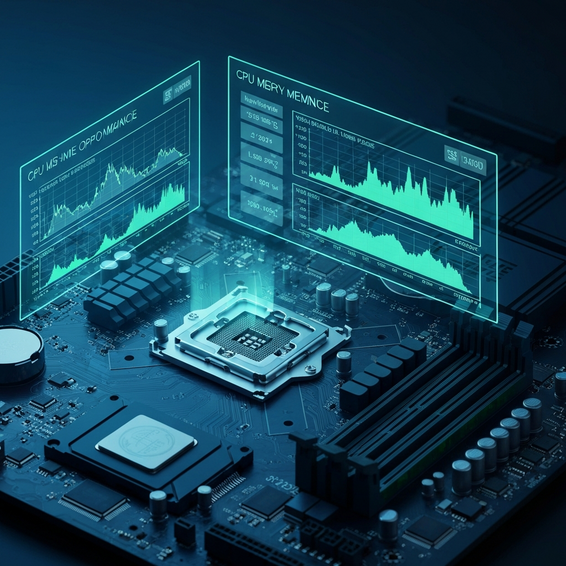
If you want to stop guessing and start troubleshooting with hard data, Windows Performance Monitor (PerfMon) is the tool to use. It allows you to gather incredibly detailed performance metrics over an extended period, tracking things like disk queue lengths, CPU interrupt rates, and hard page faults.
By setting up a custom Data Collector Set, you can record exactly what the system is doing when a lag spike hits. This is an absolute lifesaver when you are trying to diagnose intermittent freezing issues that stubbornly refuse to happen while you’re actively watching.
Run System File Checker (SFC) and DISM
Missing or corrupted system files can cause severe operational hiccups and mysterious lag. Fortunately, Microsoft includes robust command-line tools right out of the box to help repair the operating system. To use them, you will need to open an elevated Command Prompt (Run as Administrator).
Your first move should be running the Deployment Image Servicing and Management (DISM) tool. Just type DISM /Online /Cleanup-Image /RestoreHealth and hit enter. Once that process finishes, follow it up with the System File Checker by typing sfc /scannow. Together, these two utilities will detect and replace any damaged critical files with healthy versions.
Fix Disk Usage 100% Bugs
If your Task Manager is showing your disk usage constantly pegged at 100%, a few underlying system services are likely to blame. One of the most common offenders is “SysMain” (formerly known as SuperFetch), a service designed to pre-load your frequently used apps into memory.
To turn it off, press Win + R to open the Run dialog, type services.msc, and hit enter. Scroll down to SysMain, right-click it, and change its startup type to “Disabled.” While you are troubleshooting your drives, it is also a great idea to check for physical bad sectors by running the chkdsk /f /r command in your terminal.
Best Practices for Long-Term Optimization
Fixing problems as they pop up is great, but proactive maintenance is always better. By sticking to a few key best practices, you can easily maintain peak performance and prevent sudden system degradation down the road.
- Upgrade to an SSD: We cannot stress this enough—if your Windows OS is still installed on a spinning mechanical hard drive, swapping it out for a Solid State Drive (SSD) or an NVMe drive is the single most massive performance upgrade you can possibly make.
- Keep Drivers Updated: The drivers for your motherboard chipset, GPU, and network adapters dictate exactly how efficiently Windows talks to your physical hardware. Skip the generic Windows updates and grab the latest official drivers directly from the manufacturer’s website.
- Regular Malware Scans: Malicious software and hidden cryptominers are designed to run silently in the background, siphoning off massive amounts of your CPU power. Make it a habit to run deep, periodic scans using Windows Defender or a trusted enterprise-grade security tool.
- Monitor Thermal Throttling: Dust is the silent killer of PC performance. When it builds up inside your case, your components overheat, and your processor will automatically slow itself down to prevent melting. Take the time to clean out your fans, and consider reapplying fresh thermal paste to your CPU every couple of years.
Recommended Tools and Resources
Troubleshooting is significantly easier when you have the right software stack at your disposal. Here are a few must-have tools that system administrators and power users rely on to dig deep into system diagnostics.
- Sysinternals Suite: This is a powerhouse collection of advanced diagnostic utilities directly from Microsoft. It features Process Explorer, which acts as a massively detailed, hyper-advanced replacement for the standard Task Manager.
- HWiNFO: A fantastic utility for keeping a close eye on hardware temperatures, voltages, and clock speeds. It will immediately alert you if thermal throttling is the true reason behind your system lag.
- WinDirStat: A brilliant visual disk usage analyzer. It color-codes your storage drive, helping you instantly spot massive, forgotten files or bloated folders that are clogging up your space.
Frequently Asked Questions (FAQ)
Why is my PC suddenly running so slow?
When a PC slows down out of nowhere, it is usually because of an unprompted background update, an aggressive antivirus scan kicking off, or a rogue program quietly maxing out your CPU. Your best move is to open Task Manager right away, find the application hogging your resources, and force it to close.
Does adding more RAM improve Windows performance?
It absolutely can, but only if your current memory is actually acting as a bottleneck. If you look at Task Manager and routinely see your RAM hovering between 80% and 100% usage, adding more memory will stop Windows from relying on your storage drive for overflow, which will massively speed up your multitasking.
Are third-party registry cleaners safe to use?
As a general rule: no. Microsoft strongly advises against using third-party registry cleaners. They are notorious for accidentally deleting critical system keys, which often leads to major system instability or boot failures. You are much better off sticking to built-in utilities like Disk Cleanup and Storage Sense.
How do I fix 100% disk usage on Windows 11?
First and foremost, make sure Windows is installed on an SSD, as modern Windows versions simply don’t run well on older HDDs. If you already have an SSD and are still experiencing this, try disabling the “SysMain” service as well as the Windows Search indexer. It is also worth checking your Windows Update menu to ensure a stuck, looping update isn’t thrashing your drive.
Conclusion
Dealing with a sluggish computer does not have to be an endless, frustrating guessing game. By equipping yourself with proper windows performance troubleshooting techniques, you can accurately pinpoint exactly what is holding your hardware back and resolve the issue for good.
Begin by tackling the low-hanging fruit—manage those pesky startup apps, keep an eye on your Task Manager, and clear out storage space. If your machine is still dragging its feet, don’t be afraid to pull out the advanced tools, run a few SFC scans, dig into performance logs, and optimize your system services.
Take control of your system today by phasing out aging hardware, keeping your drivers healthy, and staying on top of software updates. Ultimately, maintaining a fast, tightly optimized Windows environment is the absolute best foundation for smooth, uninterrupted productivity.
About the Author