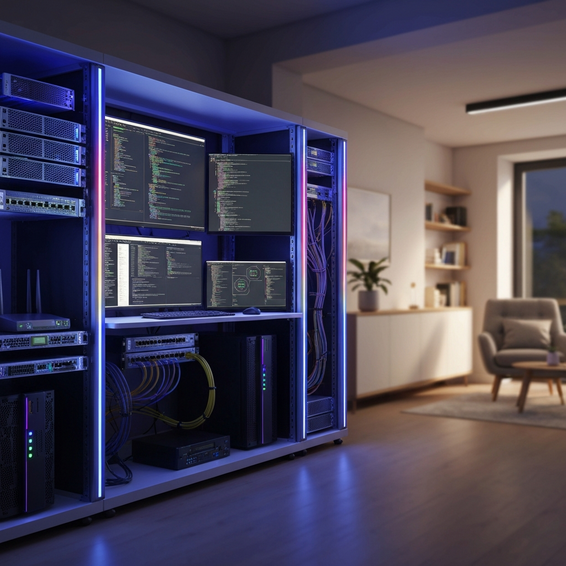
The Ultimate Home Server Setup Guide for Developers
If you’re sick of watching your AWS bills skyrocket, or if your laptop sounds like it’s preparing for takeoff every time you spin up a handful of Docker containers, you definitely aren’t alone. Relying strictly on public cloud infrastructure for testing—or bogging down your local machine with massive databases—can seriously bottleneck your daily productivity.
Modern developers frequently hit a wall when it comes to restrictive cloud free-tiers and limited local hardware. Because of these roadblocks, following a reliable home server setup guide for developers has practically become a rite of passage for today’s engineers and tech enthusiasts.
Building your own home server puts you back in the driver’s seat, giving you absolute control over your development environment. Not only does it reduce latency and dramatically speed up local testing, but it also completely eliminates those pesky monthly subscriptions for your personal projects. In this comprehensive guide, we are going to walk you through exactly how to build, configure, and optimize your own server from the ground up.
Why This Problem Happens: The Need for Local Servers
So, why exactly does local development eventually hit such a painful bottleneck? When you look under the hood, the technical root of the problem almost always boils down to resource contention and system bloat.
Today’s software architecture relies heavily on microservices. By the time you try running a modern frontend framework, a complex API backend, PostgreSQL, Redis, and a local Kubernetes node all on a standard developer laptop, it doesn’t take long to completely max out your available RAM and CPU.
This kind of intense resource starvation quickly leads to thermal throttling, rapid battery drain, and an incredibly sluggish IDE that ruins your workflow. On top of that, background services running natively on macOS or Windows can trigger frustrating software conflicts, often leaving behind lingering files and cluttered registry entries long after you’ve wrapped up your work for the day.
On the flip side, pushing every tiny code commit to a cloud-based staging environment introduces a frustrating amount of latency. A dedicated home server bridges this gap beautifully. It serves as an always-on, high-performance node sitting directly on your local network, fully ready to host your heavy dev tools without forcing your main machine to break a sweat.
Quick Fixes / Basic Home Server Setup Solutions
If you’re just dipping your toes into self-hosting, there is no need to drop thousands of dollars on a massive enterprise server rack to start seeing real benefits. You can easily start small, offload your most demanding workloads immediately, and scale up your hardware as you learn.
Here are the actionable, step-by-step instructions to get a basic local server up and running today:
- Choose Your Hardware: You can repurpose an old laptop, rescue a decommissioned desktop PC, or grab a budget-friendly refurbished Mini PC. Brands like Intel NUC, Lenovo ThinkCentre, or Beelink offer low-power, whisper-quiet machines that are absolutely perfect for a starter homelab.
- Install a Lightweight Server OS: It’s time to ditch the graphical user interface (GUI) to save those critical system resources. Simply flash a standard USB drive with Ubuntu Server, Debian, or Alpine Linux, boot your dedicated machine from it, and follow the basic installation prompts.
- Configure Static Networking: Head into your home router’s settings and assign a static IP address to your new server. This guarantees that your deployment scripts, database connections, and SSH profiles always know exactly where to find your machine, even after a reboot.
- Install Docker and Docker Compose: The vast majority of modern developer tools run flawlessly inside isolated containers. Getting the Docker engine installed is hands-down the fastest way to start deploying databases, message queues, and caching layers on your local network.
- Configure Basic UFW Firewall: Security remains critical, even when you’re operating safely at home. Make sure to enable the Uncomplicated Firewall (UFW) on your Linux machine, restricting incoming traffic to only essential ports like 22 (SSH), 80 (HTTP), and 443 (HTTPS).
By tackling these foundational steps, you’ll immediately offload those resource-hungry background services from your primary workstation. This not only delivers instant performance gains for your daily coding tasks but also significantly extends the overall lifespan of your laptop.
Advanced Solutions for IT Professionals
Once you feel entirely comfortable managing a basic Linux box, it might be time to graduate to a true enterprise-grade architecture. From a serious development and IT perspective, the ultimate goal is to build a local environment that mimics your production servers as closely as possible.
1. Implement Type-1 Hypervisors
Rather than running a single host operating system, consider installing a bare-metal hypervisor like Proxmox VE or XCP-ng. Proxmox, in particular, comes highly recommended across the developer community because it is fully open-source and incredibly robust.
This powerful software allows you to effortlessly spin up lightweight Linux Containers (LXC) alongside full-fledged Virtual Machines (VMs). In practice, this means you can dedicate one isolated VM entirely to your Kubernetes node, use another for your local GitLab instance, and set up a third to function as your very own Network Attached Storage (NAS).
2. Host Local CI/CD Pipelines
There is no reason to keep wasting your limited GitHub Actions minutes or expensive cloud credits on resource-heavy integration tests. By configuring local GitHub Actions Runners, a GitLab CI node, or a dedicated Jenkins instance right on your home server, you can execute complex, multi-stage test pipelines using your own hardware for free.
3. Local DNS and Reverse Proxy
Constantly navigating to random, hard-to-remember IP addresses like 192.168.1.50:8080 is both annoying and prone to typos. Instead, streamline your workflow by setting up Pi-hole or AdGuard Home to handle your local DNS management.
Once your DNS is sorted, pair it with a reverse proxy like Traefik or Nginx Proxy Manager. This brilliant combination lets you access your local services using clean, memorable domains like api.homelab.local, which closely mimics how a real web deployment looks and behaves.
Best Practices for Server Optimization
Any reliable home server setup guide for developers wouldn’t be complete without touching on long-term maintenance. Even if your server lives strictly on your private local network, lazy security and maintenance practices can quickly lead to compromised data or premature hardware failure.
- Use SSH Key Authentication: Do yourself a favor and disable password logins in your
sshd_configfile right away. Generate a secure ED25519 SSH key pair on your dev machine and strictly use cryptographic keys to authenticate your sessions. - Never Expose Ports Unnecessarily: Resist the urge to port-forward your server to the open internet unless you have implemented strict, enterprise-level security measures. Instead, look into establishing a zero-trust mesh VPN.
- Implement Tailscale or Cloudflare Tunnels: Speaking of VPNs, Tailscale creates an incredibly secure, WireGuard-backed mesh network. It securely allows you to access your home server from a local coffee shop without ever having to open a single port on your router.
- Automate Your Backups: Let’s face it: hardware inevitably fails. Protect your hard work by using tools like Proxmox Backup Server or setting up simple
rsynccron jobs. Fully automate the process of backing up your configurations and database volumes to an external drive or a cheap cloud storage bucket. - Monitor System Health: Take the guesswork out of maintenance by deploying Prometheus and Grafana dashboards. Keeping a close eye on your CPU temperatures, memory usage, and disk I/O trends is the best way to prevent unexpected crashes right in the middle of a heavy compiling session.
If you find yourself interested in exploring automated provisioning further, be sure to check out our comprehensive insights on DevOps workflows to supercharge your infrastructure deployment even more.
Recommended Tools and Resources
To help you maximize your overall productivity, we’ve put together a curated list of hardware and software that comes highly recommended by the self-hosting community. (Note: Some of the links below may be affiliate links, which means we earn a small commission at no extra cost to you if you decide to make a purchase.)
- Hardware: Beelink Mini PC (Intel N100) – This machine is extremely power-efficient, making it the perfect candidate for a first-time Docker host.
- Storage: WD Red Plus NAS Hard Drives – These rugged drives are built specifically to handle the rigors of 24/7 continuous server operation.
- Networking: Ubiquiti UniFi Switches – An excellent choice for seamlessly segmenting your homelab traffic via custom VLANs.
- Management Software: Portainer – A fantastic, lightweight web GUI that takes the headache out of managing your sprawling Docker and Kubernetes environments.
- Infrastructure as Code: Ansible and Terraform – Leverage these industry-standard tools to automate the configuration of your server, allowing you to treat your local lab exactly like a scalable enterprise cloud environment.
FAQ Section
How much RAM do I need for a developer home server?
If you’re simply running a basic Linux server packed with a few lightweight Docker containers, 8GB to 16GB of RAM is generally more than enough. However, if you plan to dive into Proxmox, deploy full-scale Kubernetes clusters, or run multiple virtual machines simultaneously, bumping that up to 32GB or even 64GB of RAM is highly recommended to keep everything running smoothly.
Will a home server increase my electricity bill significantly?
This entirely depends on the type of hardware you choose to run. Dragging an old, heavy enterprise rack server into your basement will definitely consume a ton of power, which can drastically increase your monthly utility bill. On the other hand, a modern Mini PC or a small ARM-based board draws remarkably little power (typically lingering around 10W to 30W), which usually adds less than five bucks a month to your electricity costs.
Can I host a public website on my home server?
You certainly can, but it comes bundled with significant security risks, and your internet service provider (ISP) might actually block standard web ports anyway. A much safer, headache-free alternative is to use Cloudflare Tunnels. This technology securely connects your local server directly to the Cloudflare edge network without requiring you to open your home firewall, effectively masking your real IP address from the public.
Is a Raspberry Pi good enough for a developer server?
A Raspberry Pi 4 or 5 is a fantastic little device for learning the ropes of Linux, running network-wide ad blockers like Pi-hole, and hosting small Python scripts or static web pages. However, because of its ARM architecture and relatively limited I/O speeds, you might run into compatibility issues when trying to run enterprise databases or heavily demanding container workloads compared to traditional x86/x64 systems.
Conclusion
Ultimately, setting up your own local infrastructure is one of the smartest investments you can possibly make for your software engineering career. By offloading those demanding, resource-heavy workloads from your primary machine, you immediately gain a testing environment that is blazing fast, wildly cost-effective, and fully customizable. Best of all, it gives you the freedom to experiment with bleeding-edge technologies without the lingering fear of breaking your primary workstation.
Whether you decide to start simply with an old, repurposed laptop running Docker, or you choose to scale all the way up to a highly available Proxmox cluster, following this home server setup guide for developers will firmly set you on the path toward better productivity. It naturally enforces a deeper, more practical technical mastery over the very tools you rely on every single day.
So, take action today: dust off an old piece of hardware, install a lightweight Linux distribution, and spin up your very first container. Your laptop’s battery, its thermal limits, and your shrinking cloud budget will absolutely thank you.
About the Author